Interim Business ProcessResource Documentation for Retro Periods |
Current Functionality
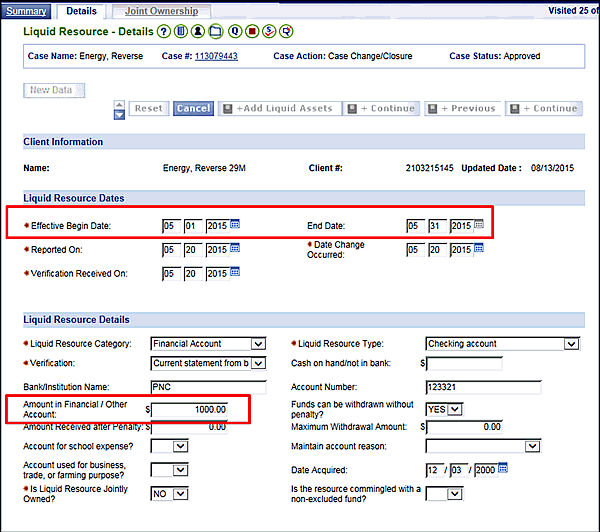
The VaCMS will use the resources recorded from the first day of the first retroactive month to calculate the Resource Assessment for a case. You can enter resources for each retroactive and ongoing period by changing the Effective Begin Date field for the affected resource for each month that a change in resources occurs (for example, a change in the balance of a checking account from month to month). This will enable you to enter the countable resources for each retro month.
Interim Business Process for Recording Resources for Retro Periods
The following example relates directly to a change in the balance of a checking account during the second retroactive month. While the scenario is specific to a change in one resource type, the same process can be repeated for any resource type or date(s). Workers should follow the process below to record a change in resources for retroactive and ongoing periods.
Follow the steps below to update the resource information after the initial resource record has already been entered:
Note: The VaCMS will default the Effective Begin Date for Resources to the first day of the first retro month. In this example, the first day of the first retroactive month is 05/01/2015.
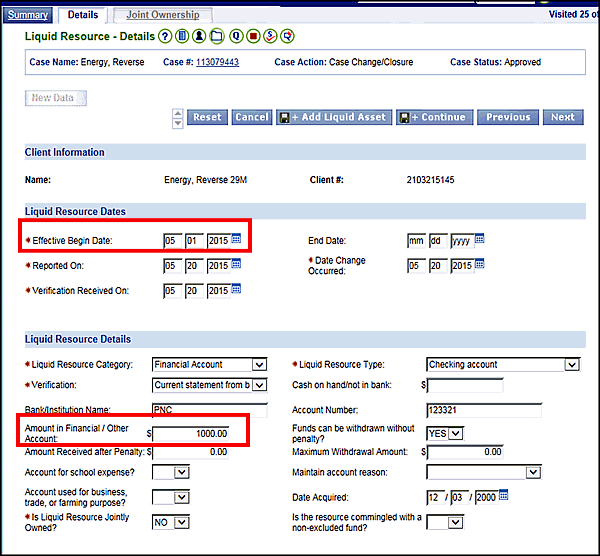
To record a change in resources that occurred in a different retroactive month, change the Effective Begin Date to reflect the first day of that retroactive month.
Note: When updating a case, always use the date in which the change in resource occurred, which is not necessarily the beginning of the month.
Change the Amount in the Financial / Other Account to reflect the amount in the checking account as of the new effective begin date.
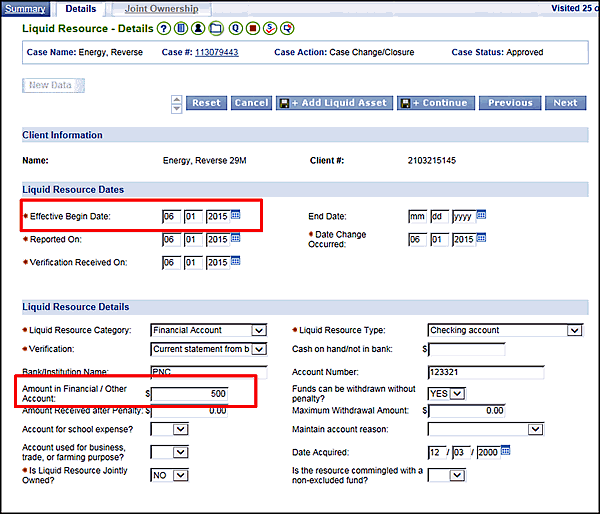
Click Save + Continue.
Repeat as needed to report additional changes for other dates / months.
Note: You will be able to review past records by clicking the up and down arrows  next to the Reset button on the resource details page.
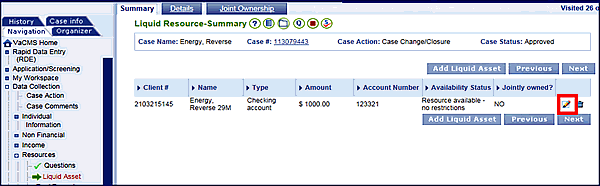
Access summary page of the resource and click on the edit icon (pencil).
Notice the record still displays the most current date and change in the resource amount.
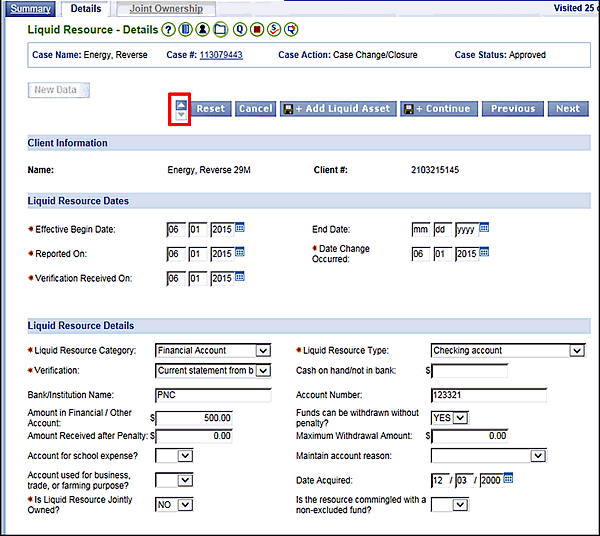
Click on the toggle arrow to review the previous record(s).
Notice the previous dates and resource amount will display. The system will also automatically calculate an End Date for that resource based on the Effective Begin Date of the amount change.
Continue processing the case through running eligibility.
Click on the Eligibility Service Period for the retroactive months.
Click the Resource tab and review the calculations to ensure that the changes in the resource information were properly calculated from month to month.
Once the information has been verified, continue with authorizing the case and sending information to MMIS.
Interim Business Process Expected End Date
TBD
Updated: 09/08/2015